Booking.com emails you every error it returns for an update, with the message as Booking.com sent it. The message usually names the date, rate or room with the problem. Find the error below to see what causes it and how to fix it. Fix errors straight away: while there's an error, Booking.com may reject your updates, which can lead to overbookings.
Table of Contents
- Reconnect Beds24 at Booking.com
- Connection and access errors
- Rooms and rates errors
- Prices and occupancy errors
- Bookings, cards and overbookings
- Messaging errors
- Property and content errors
Reconnect Beds24 at Booking.com
Many errors mean your connection doesn't include everything Beds24 needs, for example the content API or messaging. To fix this:
- Log in to Booking.com and go to Account > Connectivity Provider.
- Disconnect Beds24.
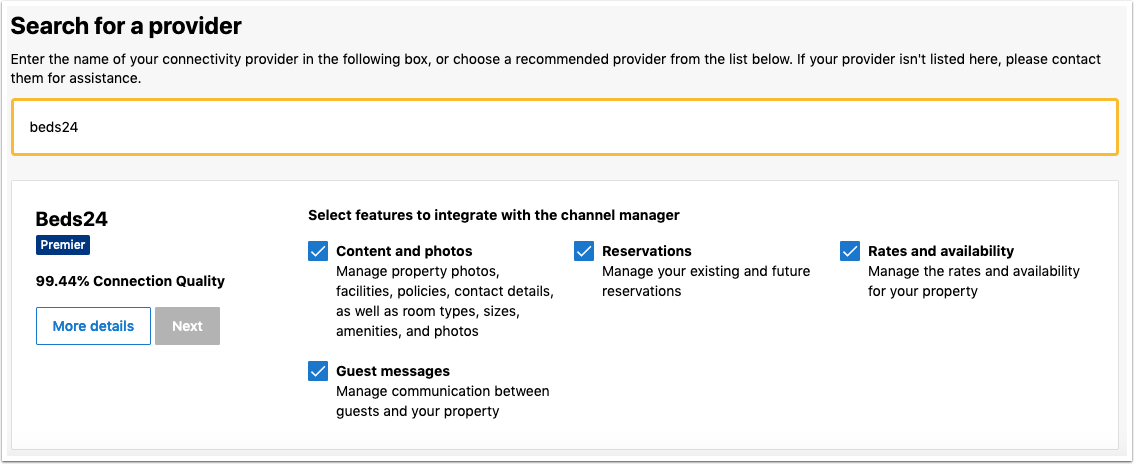
- Connect Beds24 again and tick all tick boxes, as in this screenshot of the Booking.com tick boxes.
- Try again in Beds24.
Connection and access errors
| Issue / Error | Likely cause | Resolution |
|---|---|---|
Hotel access denied |
The connection isn't ready or the hotel ID is wrong. | Check that you received the Booking.com notification that the connection is ready. If not, check in the Booking.com extranet that the connection was requested. If yes, check the hotel ID in Beds24 is correct, with no spaces. Click Connection Status to check the connection is activated. |
This account doesn't have access to this property.","code":"FORBIDDEN" |
The connection doesn't include all permissions, or a booking was moved to a room in another property. | Reconnect Beds24 with all tick boxes ticked. If you use dependencies, only assign bookings to rooms in the same property as the room mapped to Booking.com. |
Code 497 - Authorization error. Access denied while trying to update hotel or Code 737 - Access denied trying to update hotel
|
The property isn't activated for the content API. | Reconnect Beds24 with all tick boxes ticked. |
Access denied when you create a rate plan or open a property |
The connection isn't activated for content. | Reconnect Beds24 with all tick boxes ticked. |
| The connection is one-way | Only Reservations or only Rates and Availability was selected. | Disconnect Beds24 in the Booking.com extranet and request the connection again with both selected. |
Connections to fix: 0 in the Booking.com extranet |
Booking.com shows this message by mistake. | Nothing is wrong. Ignore the message and the rest of the text on the screen. |
Rooms and rates errors
| Issue / Error | Likely cause | Resolution |
|---|---|---|
Room code is not unique warning when you save in Beds24 |
The same Booking.com room ID is mapped to more than one Beds24 room. The rooms overwrite each other's updates, which causes overbookings. | Map each Booking.com room ID to one Beds24 room only. |
| No room codes are available | Booking.com doesn't make any rooms available for the property. | Click Get the Booking.com Room and Rate Codes for this Property Code to see what Booking.com returns. If you're sure you have rooms, forward the RUID to Booking.com support and ask why no rooms are returned. |
Room is not active, ROOM_NOT_ACTIVE or ROOM_ID_INVALID
|
The room ID isn't active at Booking.com. | You can only update rooms that show under Get Codes. If you do have a room with this ID, ask Booking.com to activate it. |
Rate is not active, RATE_NOT_ACTIVE, RATE_NOT_ACTIVE_FOR_ROOM or RATE_DOES_NOT_EXIST
|
No active Booking.com rate ID has this number. | Go to Prices > Channel Mapping, search for the code from the error, open the price and select an ID from Get Codes. Check all your daily prices and fixed prices use a valid rate ID from Get Codes. |
RATE_IS_A_SLAVE_RATE, for example You cannot set occupancy_price for a child rate or You cannot set closed_as_last_night for a child rate
|
Booking.com derives this rate plan from another rate plan, so it can't receive prices. |
Option 1: in the Booking.com extranet, go to Rates & Availability, click Edit on the rate from the error, edit the price, select Setup as a new rate plan and click Save. See the video on setting up a linked rate as a new rate plan. Option 2: select a valid rate ID from Get Codes in Settings > Channel Manager > Booking.com > Mapping. Then go to Prices > Channel Mapping, search for the rate ID and, in each price, either select the right rate ID from Get Codes or untick Booking.com and remove the rate ID. |
RATE_EDITABLE_ONLY_ON_EXTRANET |
You're updating a rate that isn't an XML rate. | Log in to the Booking.com extranet and remove the rate. |
Restricted. Defined policy code is not available for this hotel |
The cancellation policy isn't activated for the property. | Log in to Booking.com, activate the cancellation policy and try again. |
| A rate deleted in Beds24 is still open at Booking.com | Deleting a rate or price in Beds24 doesn't delete it at Booking.com. If a rate has no price on any day, nothing is sent and Booking.com keeps its data. | First make the rate unbookable in Beds24, for example by closing the room or removing the price for the dates to close, and wait until it's closed at Booking.com. As long as the rate has a price for at least one day in the next year, all dates without a price are closed. Only then remove it from Beds24. Click View Price Data to check what's sent. |
| The room is closed unexpectedly at Booking.com | Beds24 closes the room on all dates without a valid price for Booking.com. | Make sure you have prices for the whole period you send (1 or 2 years). |
Prices and occupancy errors
| Issue / Error | Likely cause | Resolution |
|---|---|---|
OBP_PRICING_PASSED_FOR_LOS_RATE, OBP_PRICING_PASSED_FOR_RLO_RATE, OBP_PRICING_PASSED_FOR_DEFAULT_RATE or OBP_PRICING_PASSED_FOR_SINGLE_USE_RATE
|
Your pricing model needs correcting. | Send Beds24 a support ticket so the pricing model can be corrected. |
INVALID_USE_OF_SINGLE_OCCUPANCY |
Booking.com doesn't accept a single price with pricing model Standard or RLO. | In Settings > Channel Manager > Booking.com > Mapping, set Booking.com Rate Type = Per Day Pricing. To send occupancy pricing instead, send Beds24 a support ticket asking to change your Booking.com pricing model to OBP. |
Not allowed to update Single Use Rate for Room or CANNOT_SET_SINGLE_USE_RATE
|
Booking.com hasn't activated a single occupancy price for the room. | Ask Booking.com to allow a single price (a "Single" rate ID), or set Booking.com Rate Type = Per Day Pricing. For dorms, set Per Day Pricing and set all your prices as a room price, not a single price. |
NOT_A_VALID_OCCUPANCY |
The occupancy in Beds24 doesn't match Booking.com. | Make sure Max guests in Settings > Properties > Rooms > Setup is the same as the room's occupancy in the Booking.com extranet. |
OCCUPANCY_EXCEEDS_MAX_PERSONS, for example Room has a maximum occupancy of 4. You cannot set an occupancy_price for an occupancy of 5
|
You're sending a price for more guests than the room takes at Booking.com. | Make sure Max guests in Settings > Properties > Rooms > Setup is the same as the room's occupancy in the Booking.com extranet. |
WARN_PRICE_TOO_LOW_LIMIT, WARN_PRICE_TOO_HIGH_LIMIT or PRICE_BELOW_MIN_PRICE
|
The price differs a lot from the prices already at Booking.com, or is outside the accepted range of €5 to €50,000 (or the same in your currency). | Adjust your price in Beds24, or ask Booking.com to change the limit. |
| Bookings arrive with the wrong minimum stay | A linked rate plan or a promotion at Booking.com was used. Check the rate description on the booking's Charges & Payments tab: "rewritten" confirms it. | For linked rate plans, set up prices with the rules in Beds24 and map them to the Booking.com rate plans. In the Booking.com extranet, set up the linked rate as a new rate plan (see RATE_IS_A_SLAVE_RATE above), then create daily or fixed prices in Beds24 and map the new rate plan with Get Codes. |
| The booking price is lower than the price you sent | Promotions or linked prices at Booking.com reduce the price, or your prices aren't set up as you expect. | Check your promotions and linked prices at Booking.com, and your prices in Beds24. |
Bookings, cards and overbookings
| Issue / Error | Likely cause | Resolution |
|---|---|---|
| Overbooking | Unfixed error messages, the same Booking.com room code in several Beds24 rooms, or Auto-Replenishment reopening a cancelled room at Booking.com. | Check your email and Potential Issues for errors, and your setup for warnings. Turn off Auto-Replenishment. If you find no problem, send Beds24 a support ticket with the booking numbers and dates. |
| A date change by the guest caused an overbooking | Booking.com didn't check the inventory when the guest changed the dates. | In the Booking.com extranet, set the rules you need under Modification and Cancellation exceptions. |
| A booking wasn't imported | The room isn't mapped correctly. | Check the room mapping. If you find no problem, send Beds24 a support ticket with the booking number and the date it was made. |
Room reservation does not belong to this hotel reservation |
The booking was cancelled at Booking.com before the channel sync. | No action needed. |
| Credit card details are missing in Beds24 | Booking.com didn't send the card, or it's stored in a third-party system such as Stripe. | Card numbers show on the booking's Payments and Charges tab. The encoded CVC is in the host notification email as Security Code: enter it in the booking to see the CVC. If there's no Security Code line, the CVC wasn't collected. If cards are always missing, ask Booking.com to collect and send them. If you always want a card as security, ask Booking.com to only accept bookings with a card. See Card Number Collection. |
You cannot mark credit card as invalid since the property has not passed trust verification checks |
Your property hasn't passed Booking.com's trust verification. | Contact your Booking.com account manager. |
Messaging errors
| Issue / Error | Likely cause | Resolution |
|---|---|---|
Message thread not found |
The connection doesn't include the messaging API, or the booking was assigned or moved to a room in another property. | Reconnect Beds24 with all tick boxes ticked. To use messaging, only move or assign bookings to rooms in the same property as the one booked. |
Failed to post message: Message content failed to pass security filters, or Auto Action messages don't show in the Booking.com message centre |
The message text has special characters that fail the Booking.com security checks. | Remove special characters such as * or @ from the message text. |
Message failed to send to reservation 12345678 - content or attachment is required |
The Auto Action has no text in the guest's language (or your account's default language), or it shouldn't send a message at all. | Check the guest language on the booking's Mail & Action tab, and make sure the Auto Action has text in Subject, the plain text field and the HTML field. If the Auto Action shouldn't message the guest, set Sending Message = No (or Internal) on its Messaging tab. |
Property and content errors
These errors appear when you create or update a property or room from Beds24. See Booking.com: Create and update properties and rooms on Booking.com and Content for Booking.com.
| Issue / Error | Likely cause | Resolution |
|---|---|---|
Partner Card not found for the given data |
Booking.com only recognises the link between your legal entity ID and Beds24 after an interface request or a property has been sent. | Ignore it if you haven't connected a property yet. |
This SPO Hotel has not given invoice details or signed contract |
Your contract with Booking.com isn't complete. | Check the messages from Booking.com for instructions. If you're not sure what's needed, contact Booking.com support. |
Code 121 - Accommodation not contracted or Code 733 - Error when adding hotel to legal entity: Can not add this hotel to group contract as partner has no contract for XY
|
The property's country isn't in your legal entity contract. | Add the country to your legal entity ID. See Add countries to your legal entity ID. |
Invoice check failed for hotelId: 1234567 with errors => [recipient not set] |
The invoice recipient is missing at Booking.com. | In the Booking.com extranet, go to Finance > Finance settings > Invoice details, complete the fields, especially For the attention of, and save. Then click Open in Settings > Channel Manager > Booking.com > Sync Content. |
Code 320 - size must be between 2 and 2 (field: invoice_settings.state) |
The state in the invoice settings isn't a 2-letter code. | In Settings > Channel Manager > Booking.com > Specific Property Content > Invoice Settings > State, enter the 2-letter country code, not the country name, for example JP for Japan. |
Code 150 - Changes are not permitted. This is because property has status Open / bookable. Please contact your account manager if you want to modify latitude, longitude, property name, address |
Booking.com doesn't allow some changes, such as location or language, once the property is open. | Contact Booking.com support (your "account manager") to make the change. |
Hotel has non-Latin characters in name |
The property name has non-Latin characters. | Use only Latin letters and numbers in the property name. |
'Invalid phone number / The phone number (number) is not valid for international calling |
The phone number has no country code, or the country code isn't separated from the number. | Add the country code and separate it from the rest of the number with a space. |
No resolvable address is specified |
Booking.com considers your address invalid. | Update your address in Settings > Properties > Description. |
No contacts specified |
The property has no contact. | Add a contact in Settings > Properties > Description. |
No hotel facilities defined |
The property has no features. | Add features in Settings > Properties > Description. |
Property has no licence number / PropertyLicenseNumber is mandatory for this location' |
Your location requires a licence number. | Enter your licence number in Settings > Properties > Description. |
TPA_Extensions/PropertyTaxInfo/PropertyRegisteredInVcs is mandatory for this location |
Your location requires tax information. | Set a LEGALREGISTERED value in Custom in Settings > Channel Manager > Booking.com > Specific Property Content. The context help next to the setting lists the values. |
TPA_Extensions/PropertyTaxInfo/PropertyHasVat is mandatory for this location |
Your location requires tax information. | Set a LEGALHASVAT value in Custom in Specific Property Content. |
TPA_Extensions/PropertyTaxInfo/PropertyDeclaresRevenue is mandatory for this location' |
Your location requires tax information. | Set a LEGALDECLARESREVENUE value in Custom in Specific Property Content. |
Invalid checkin/checkout' |
The check-in and check-out formats are wrong. | Check the formats for check-in and check-out. |
Code 733 - Invalid checkin/checkout |
No check-in or check-out times are set at Booking.com. | In the Booking.com extranet, go to Property > Policies > Guest information and enter the times. |
xx not allowed as room name |
The room name isn't one Booking.com allows. | Go to Settings > Channel Manager > Booking.com > Specific Room Content > Room Type Names and select a name from the get names list. |
Code 733 - Description/Text 'XXXXXXX' is not an allowed room name in language 'en' |
The wrong room type name is selected. | In Specific Room Content, click Get names next to Room Type Name and select the right name. An English room name is mandatory; you can add a local-language name as well. |
duplicates for room name |
Booking.com allows each room name only once. | If you have one room type at Booking.com but individual rooms in Beds24, set up virtual rooms. |
Room name does not correspond to Room Type |
Booking.com doesn't allow this room name for the selected room type. | Change the room name or the room type. |
Code 733 - Room occupancy (4) for room 123456789 ("Double Room with Balcony") does not correspond to RoomType (Double) |
The wrong room type is selected. | In Settings > Channel Manager > Booking.com > Specific Room Content, select a room type that fits. |
Invalid occupancy for this room type |
The number of guests for the room isn't allowed for the room type. | Change the number of guests or the room type. |
Room (room_id) does not have kitchen or kitchenette |
The room type needs a kitchen or kitchenette. | Add it under Features in Settings > Properties > Rooms > Setup. |
No defined facilities for specified room |
The room has no features. | Add features under Features in Settings > Properties > Rooms > Setup. |
No photos uploaded for specified room |
The room has no pictures. | Add pictures in Settings > Booking Engine > Pictures. |
Code 733 - Property has pending photo requests |
Pictures without a caption, or pictures stuck at Booking.com. | Add a caption to each picture in Settings > Booking Engine > Pictures with Manage. If the error continues after a couple of hours, ask Booking.com support to push the pictures. |
Code Pictures – No recent photos found – please update the property first. |
Booking.com allows at most 299 pictures. | Delete some pictures in the Booking.com extranet, then send the update again. |
No Products defined,'No rates defined, No rooms active' |
No rooms were sent. | Check that you've sent your rooms. |
No availability pushed |
Beds24 hasn't sent availability yet. | Click View Actual Data in Settings > Channel Manager > Booking.com. If the prices and availability are right, click Update, let the update be processed, then open the room again. |
XML: Being built |
The property isn't open yet. | Click Open in Settings > Channel Manager > Booking.com > Sync Content. See Open the property. |